![Netstream_White_RGB[1].svg]](https://support.netstream.cloud/hubfs/Netstream_White_RGB%5B1%5D.svg)
When you sign up for Object Storage (S3) with us, an account is set up for you.
This article explains how to configure and use the account.
First, log in to the Netstream Cloud Center (NCC). You can find more information here: Netstream Cloud Center (NCC) Login
Then click the Services menu, then My Services:
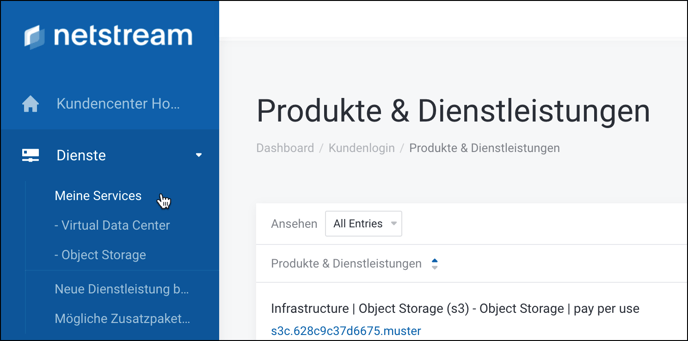
You now see an overview of your services. Click the Object Storage account you want:
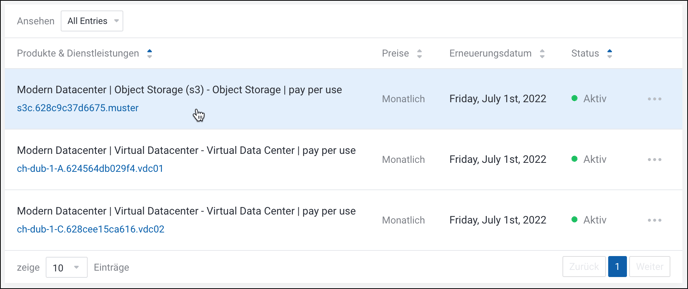
You now see the details of your Object Storage account:
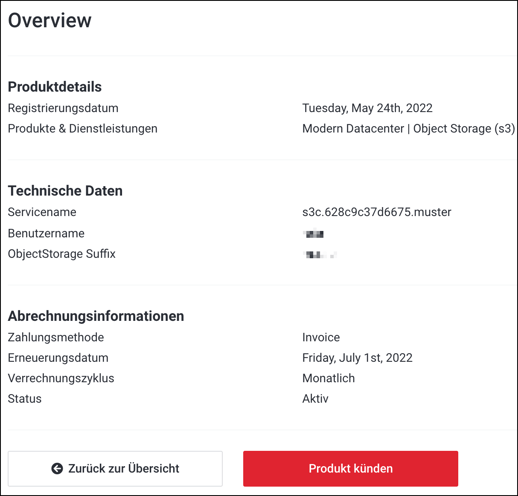
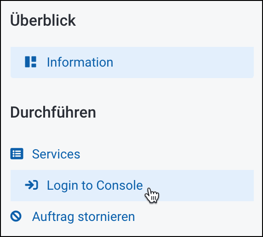
To log in to the Object Storage Console directly from the NCC, click "Login to Console" on the right:
ℹ️ NOTE
If you do not want to log in to the Object Storage Console via the link in the NCC, you can also go directly to the following link: https://console.s3.netstream.cloud/
For this, you need the following login details from the welcome email:
- Group name
- User ID
- Password
ℹ️ NOTE
If you can no longer find the welcome email, you can find it in the NCC. To do this, go to the top right of the NCC and then click Email History:
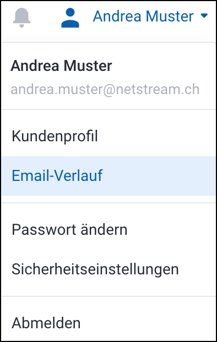
You will now see the following view:
Access keys
To work with S3-compatible applications (PC clients, backup tools, NAS, etc.), you first need to create an S3 access key. An access key of this kind is already created when your account is set up. You can view it by clicking your user name at the top right, then "Security Credentials":
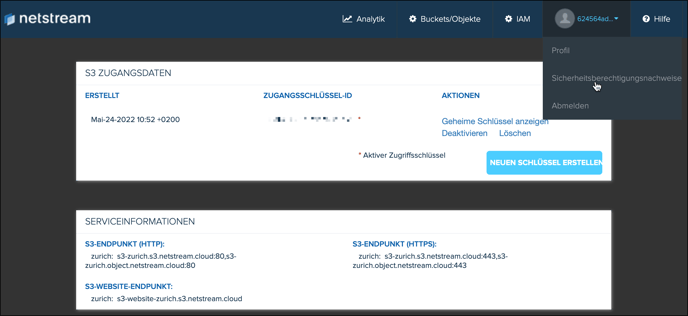
An access key consists of two components:
- Access key ID (often called "Access Key ID" by applications)
- Secret key (often called "Secret Access Key" by applications)
The various access key IDs are displayed on this page. Click "Show Secret Keys" to display the secret key as well:
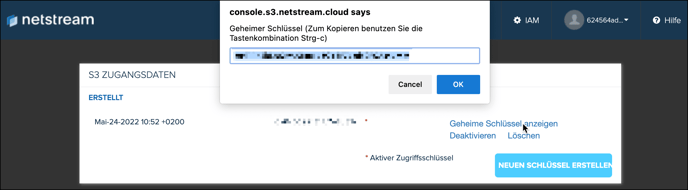
You can create several access keys to keep different applications separate from each other.
Buckets
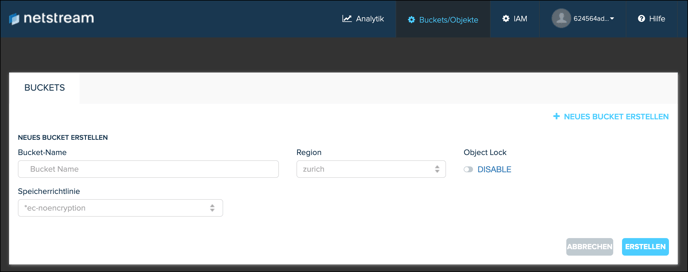
For an application to store its data, it needs a bucket in addition to the access key. You create it in the "Buckets" menu.
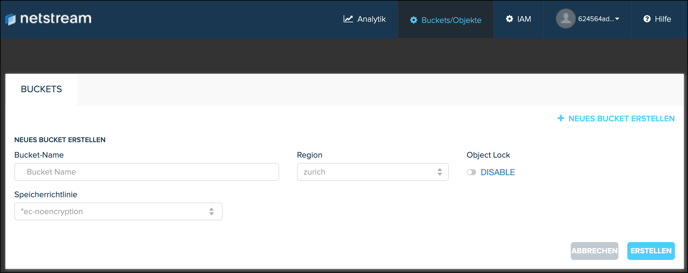
Here you only need to enter the bucket name you want and then confirm with "Create".
Once the bucket has been created, you can make various settings by clicking "Properties". For standard use with backup software, the default values are usually sufficient.
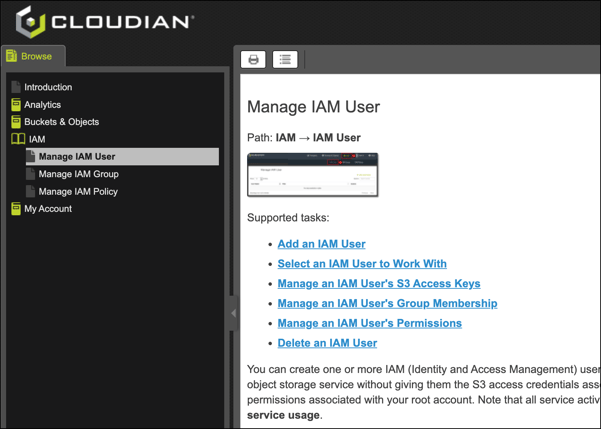
Advanced settings (including via the "IAM" menu) allow you to set up additional users on the Object Storage account, with granularly defined access rights to the buckets and their own security keys. You can find detailed information on this in the "Help" menu.

If you need more information, please do not hesitate to contact us.