![Netstream_White_RGB[1].svg]](https://support.netstream.cloud/hubfs/Netstream_White_RGB%5B1%5D.svg)
If you have signed up for a Virtual Datacenter (VDC) with us, we will already have set one up for you in advance.
This article explains how you can adapt and configure this VDC to suit your needs.
First log in to the Netstream Cloud Center (NCC). You can find more information here: Netstream Cloud Center (NCC) Login
Then click the Services menu, then My Services:
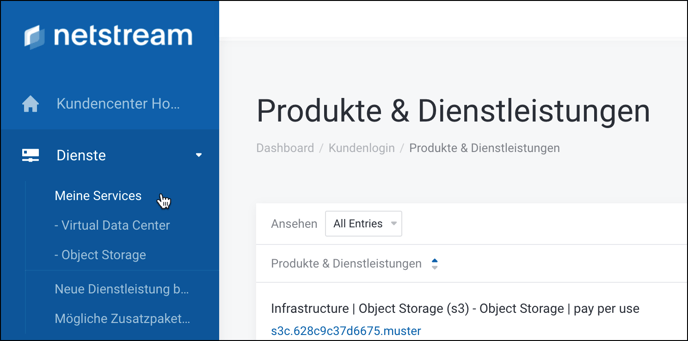
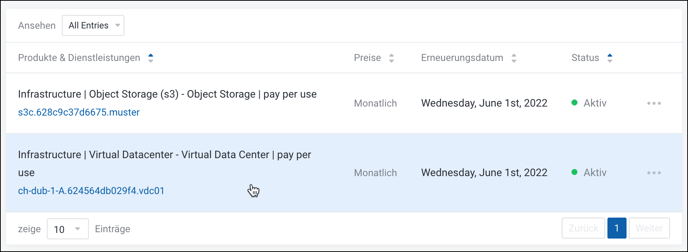
You will now see an overview of your services. Click the VDC you want:
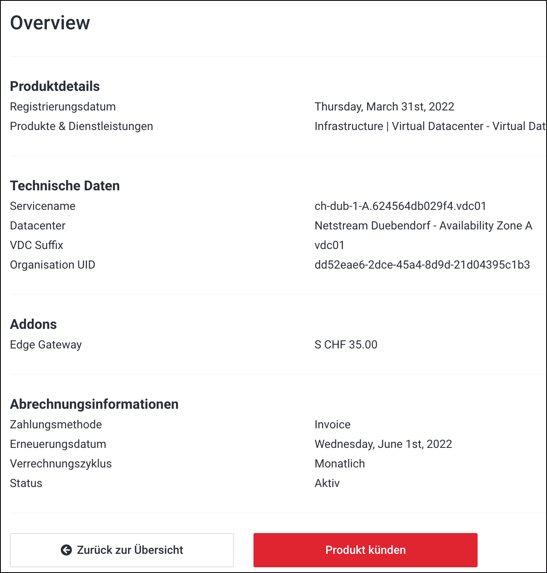
You will now see details of your VDC:
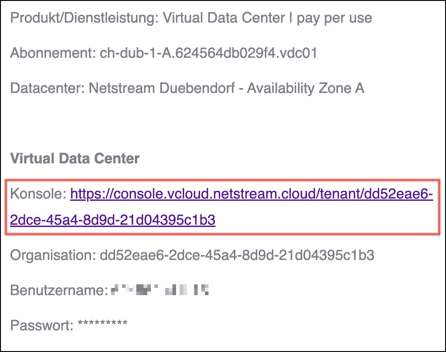
Along with the welcome email, you should also have received another email at the start with the subject "Neues Virtual Datacenter - ch-dub.....".
Open this email and click the link to go directly to the vCloud Director login:
ℹ️ NOTE
If you do not want to log in to vCloud Director via the link in the email, you must enter your Organisation UID at https://console.vcloud.netstream.cloud/login. You can find it in the email and in the NCC in the details of your VDC.
You can also reach vCloud Director via the Console link in the "Virtual Data Center" section on the right.
ℹ️ NOTE
You can only find the automatically generated user name for vCloud Director in the email. You can also find all emails the system has sent you in the NCC.
To do this, go to the top right of the NCC and then click Email History: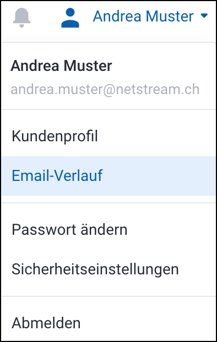
Copy this user name from the email and then paste it in.
The password is the same as for the NCC:
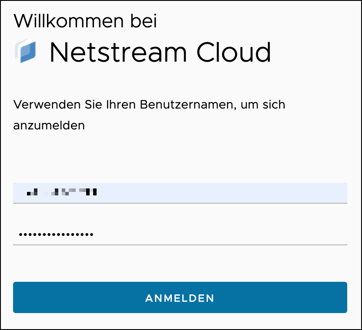
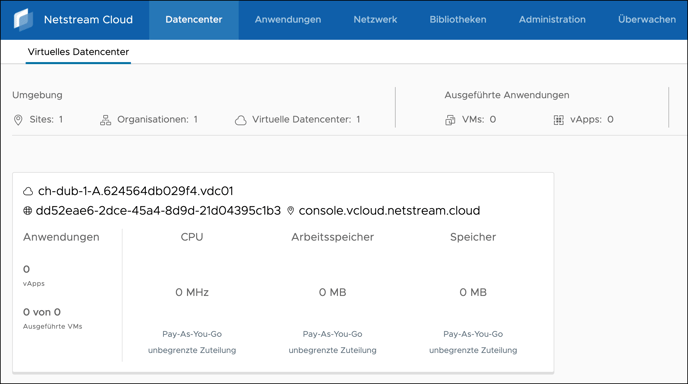
You will now see the following view:
ℹ️ NOTE
If you have several VDCs, you would now see each one of them here.
ℹ️ NOTE
"Pay-As-You-Go" means that billing is based on resource usage and not on a flat fixed price. You therefore only pay for the resources you have actually booked.
Click the VDC you want to get the following view:
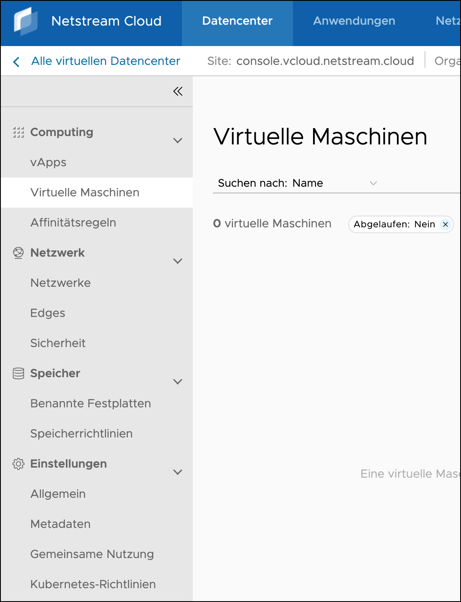
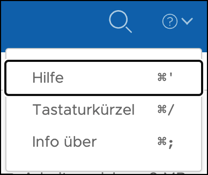
The most important functions of vCloud Director are explained below. A detailed manual for each function is available at any time via the "Help" link in the "?" menu.
Datacenter - Computing
vApps
vApps let you logically group applications that consist of several virtual machines.
Backups of vApps are also always kept consistent and treated as a single logical unit.
It is worth thinking carefully about the architecture and use of vApps before you get started. We are happy to advise you if you have any questions.
Virtual Machines
This is where you will find all the virtual machines (VMs) you have created.
In this section you can also create new VMs and manage existing VMs.
Affinity Rules
Here you can specify whether the VMs should run on the same host (hardware) or whether they should be physically separated. In high-availability cluster scenarios, for example, it can make sense to define that the VMs should run on separate hosts.
For this purpose there are affinity rules (which define that all VMs should run on the same host) and anti-affinity rules (which define that all VMs should run on different hosts).
Networking
Networks
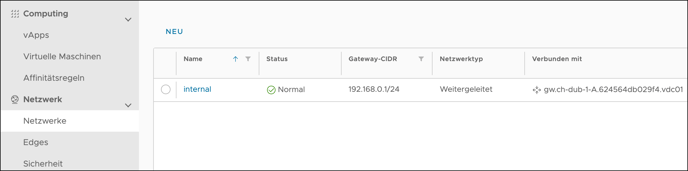
By default, we preconfigure a network for you in advance. This is an internal /24 network.
This network is already preconfigured so that VMs connected to it have access to the internet.
When you create a new VM, you can therefore simply use this network.
Edges
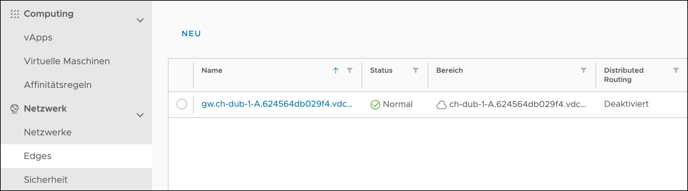
An edge is the interface between your local network (LAN) and the internet (WAN).
It therefore acts as a router and also has firewall functions.
As a rule, you need one edge per VDC.
In certain cases you need several edges in the same VDC. We are happy to advise you on this topic
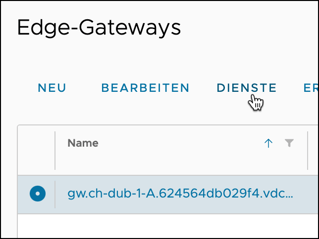
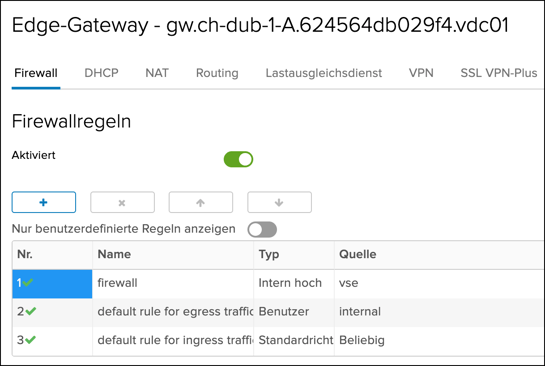
To edit the edge settings, click the round button in front of the edge name, then click Services. In this view you can configure firewall, NAT and routing settings, among others.
Storage
Named Disks
Disks are normally permanently assigned to a single VM. In some situations, however, it is necessary to attach disks to several VMs at the same time.
In this section you can create and manage virtual disks that are not permanently assigned to a VM.
Storage Policies
In this section you can see the various storage classes and a summary of the provisioned storage capacity per storage class. Here you can also specify which class is used as the default for new VMs.
A storage class or storage policy defines the maximum speed (in IOPS, input/output operations per second) of a VM disk.
Content Hub
This section shows all the templates that can be used to create VMs by default. You can also upload your own ISO files.