![Netstream_White_RGB[1].svg]](https://support.netstream.cloud/hubfs/Netstream_White_RGB%5B1%5D.svg)
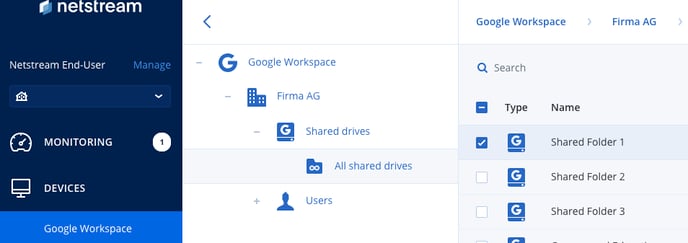
In the sidebar on the left, click "Devices" and then "Google Workspace"
-
- In the left-hand sidebar, navigate to "Devices" and then select "Google Workspace".
Select the relevant folder (Shared drives or Users)
-
- In the next step, select the folder you want to restore. You can choose between "Shared drives" and "Users".
Select the relevant shared drive
-
- Click the shared drive you want to restore.
- Click the shared drive you want to restore.
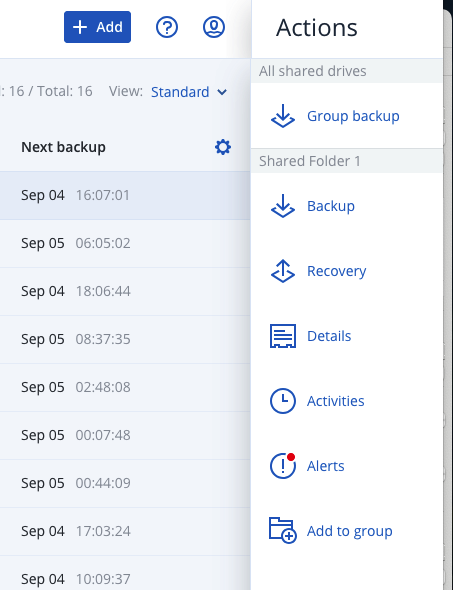
In the left-hand sidebar, click "Recovery"
- In the left-hand sidebar, select "Recovery" to start the recovery process.
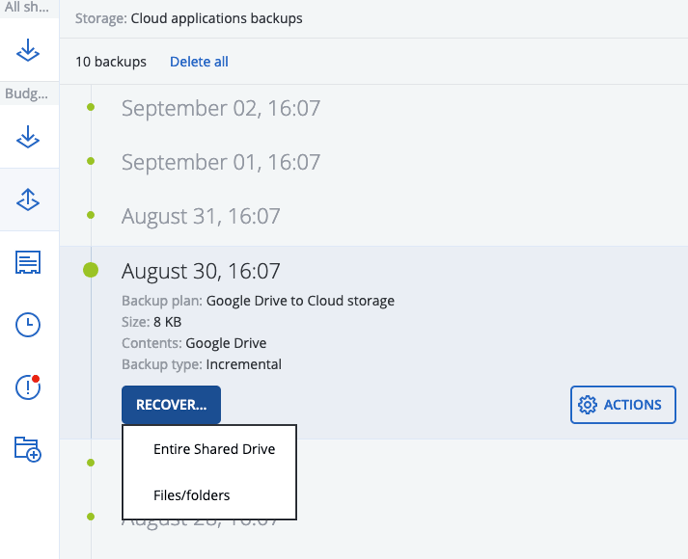
Select the relevant backup date and then click "Recover"
-
- Select the backup date from which you want to restore the files and click "Recover".
Select "Entire shared drive" or "Files/Folders"
-
- Decide whether you want to restore the entire shared drive ("Entire shared drive") or only specific files and folders ("Files/Folders").
Select files/folders in the list
-
- Select the specific files or folders you want to restore from the list displayed.
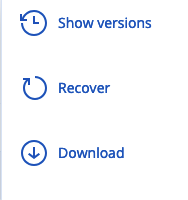
Click Download to download the files to your computer, or Recover to restore them to their original location
-
- Click "Download" to download the selected files to your computer, or "Recover" to restore them to their original location.
These steps help you restore the files you need from a Google Drive backup, either directly to your computer or to their original location in the shared drive.