![Netstream_White_RGB[1].svg]](https://support.netstream.cloud/hubfs/Netstream_White_RGB%5B1%5D.svg)
Before you start with this quickstart guide, we recommend that you also read the following guides first:
Starting point
With your network's initial configuration, the VM can reach the internet via SNAT (Source Network Address Translation), but the VM cannot be reached from outside. To make this possible and to make services publicly reachable (if required), you need to create DNAT (Destination Network Address Translation) rules and firewall rules on the Edge.
In this article, we describe how to create such DNAT and firewall rules to make services reachable from the internet
In this example, we will make the Microsoft Remote Desktop (RDP) service available. It runs on TCP port 3389.
ℹ️ NOTE
We do not recommend making the RDP service publicly available. This guide is only an example. We recommend accessing such services only via VPN, by creating a VM with a firewall (e.g. pfSense, OPNsense or similar) that acts as a VPN server.
DNAT rules
The first step is to create a DNAT rule that instructs the Edge router to forward incoming packets on TCP port 3389 to the VM.
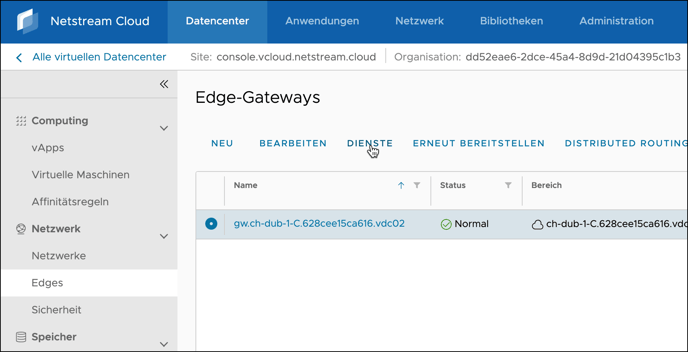
To do this, in vCloud Director under Networking, click Edges, select the Edge Gateway and click Services:
There, select the NAT tab:
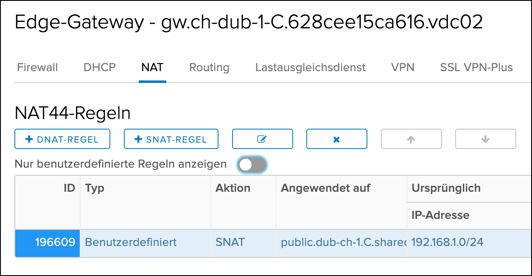
Now click "+ DNAT Rule". Fill in the fields as follows:
| Applied on | public network (e.g. public.dub-ch-1.C.shared) |
| Original IP/Range | the VDC's own public IP (choose it with Select) |
| Protocol | TCP |
| Original Port | 3389 |
| Translated IP/Range | local IP of the VM (e.g. 192.168.1.100) |
| Translated Port | 3389 |
| Source IP Address | any |
| Source Port | any |
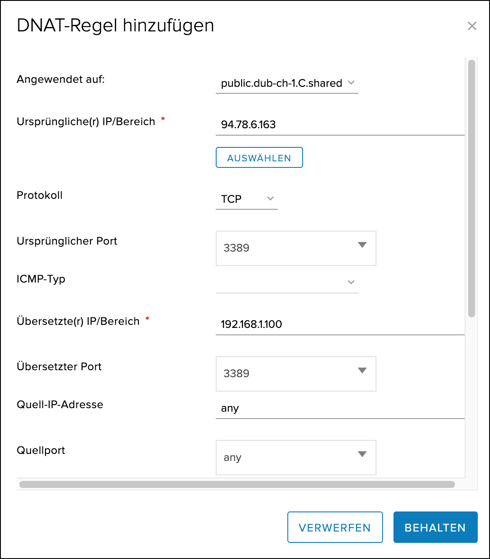
Then click Keep.
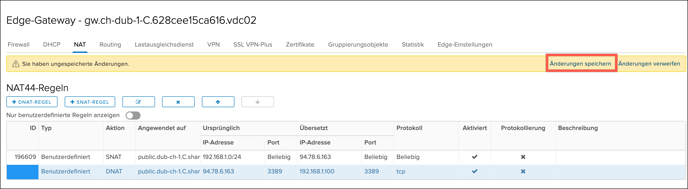
Once the rule has been created, you need to activate it by clicking Save changes.
Firewall rules
The second step is to also open the port made available via DNAT on the firewall, as the firewall will otherwise drop the incoming packets.
To do this, in vCloud Director under Networking, click Edges, select the Edge Gateway and click Services. There, select Firewall:
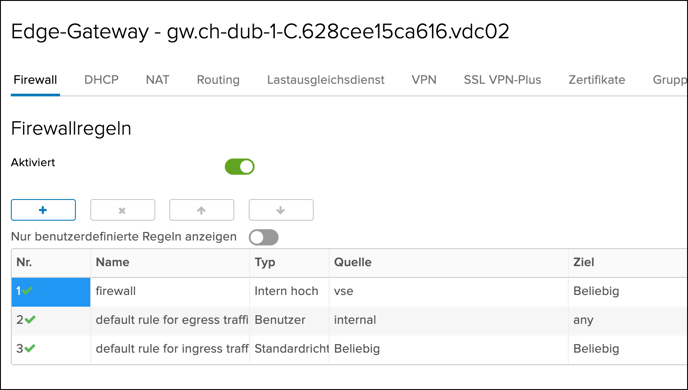
Now click "+" to create a new firewall rule. A new row named "New Rule" is created in the table.
There, you can define the rule by clicking the various fields, as follows:
| Name | Name you want for the rule |
| Source | The sources the rule should apply to (e.g. the entire public network, or individual networks or IPs) and from which the connection is allowed |
| Destination | The public IP address of the VDC on which the service should be available |
| Service |
Protocol: TCP |
| Action | Accept |
Then save the changes with Save changes.
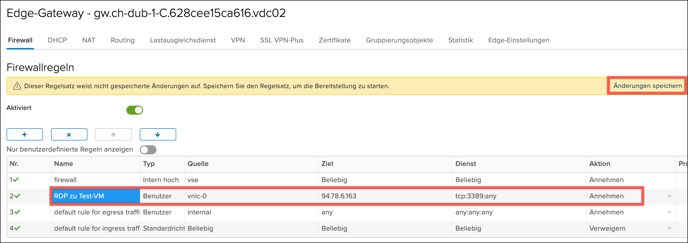
The VM can now be reached from the internet on TCP port 3389.