![Netstream_White_RGB[1].svg]](https://support.netstream.cloud/hubfs/Netstream_White_RGB%5B1%5D.svg)
Log in to the Netstream Security Service. You will receive your login details in an activation email. Please follow the instructions in the email.
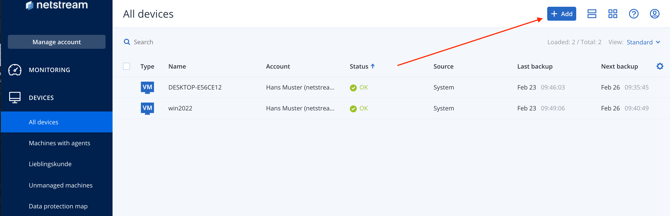
- In the console, go to Devices > All devices
- To add an M365 environment, click the "+Add" button.
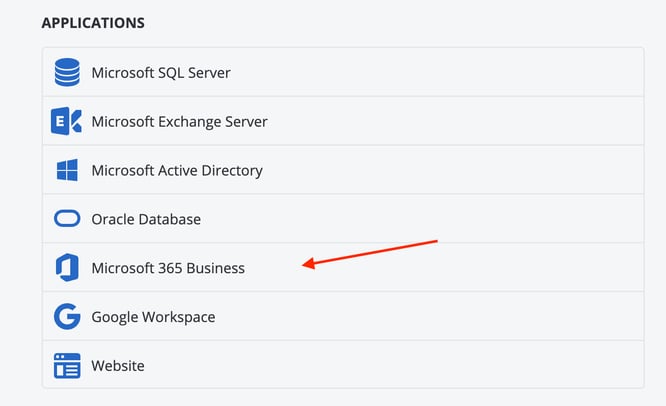
- In the sidebar, under Applications, select "Microsoft 365 Business".
- The M365 sign-in screen now opens. Please sign in with the account you want to back up. Use an admin account to sign in, so that all permissions can be granted.
- You can now set up individual users, groups or sites one by one and assign backup plans.
At this point, your M365 environment is only linked, but not yet backed up automatically.
Assign a backup plan
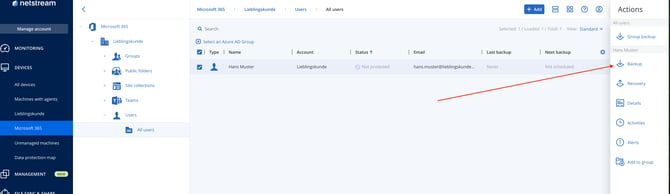
To assign a plan, first select a group, user etc. to back up, then select "Backup" in the sidebar.
A list of the existing backup plans now opens in the sidebar. Click "Apply" if you want to add an existing plan, or "Create" to create a new plan.
When you create a new plan, you are offered various options for the backup frequency, retention period etc.
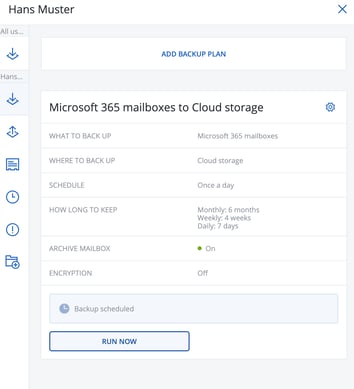
A backup has now been scheduled.
Run a backup immediately
Depending on the backup plan you created, it may take a while before the first backup is created. You can create a backup at any time using the "RUN NOW" button and bring the plan forward.