![Netstream_White_RGB[1].svg]](https://support.netstream.cloud/hubfs/Netstream_White_RGB%5B1%5D.svg)
To follow the instructions in this article, we recommend that you first read this article: Quickstart: Object Storage (S3)
Before you start, make sure you have the following details to hand for the configuration:
- Access key ID
- Secret key
- Bucket name
Synology lets you run the backup in two different ways:
- Synology Hyper Backup
- Hyper Backup is a "classic" backup solution for backing up your NAS to the cloud. You can view a history of the different file changes, and advanced features such as deduplication, encryption, compression, statistics and integrity checks are available. More information here.
- Synology Cloud Sync
- Cloud Sync is a file synchronisation solution. It synchronises files on your NAS to the cloud. There is no change history and no deduplication or compression. Encryption is available, however. More information here.
Synology Hyper Backup
To connect Synology Hyper Backup to your Object Storage / Archive Storage account, first start the Hyper Backup application on the Synology NAS:

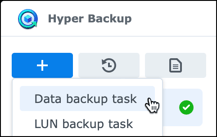
Create a new backup task by clicking "+", then "Data Backup Task":
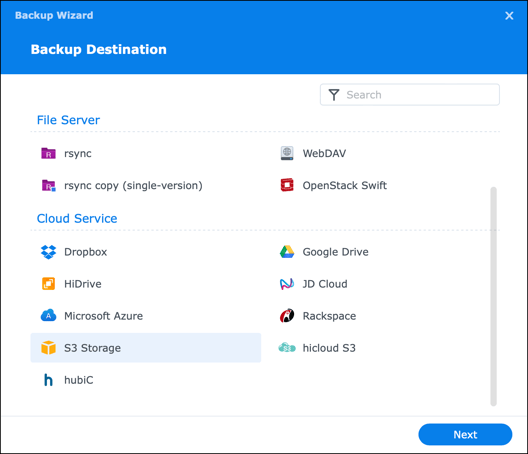
In the next step, select "S3 Storage" as the backup destination:
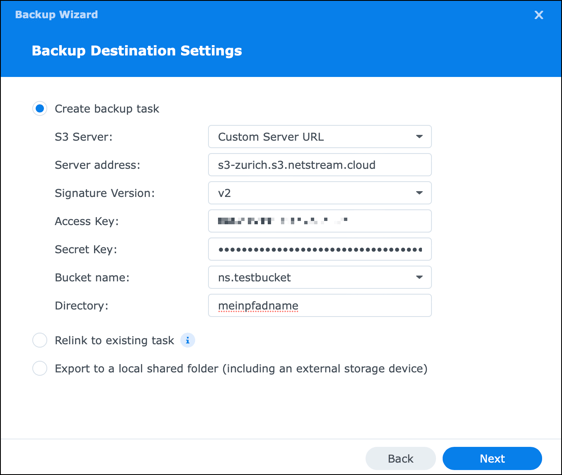
Then configure the backup destination as follows, using the details you created beforehand in the Object Storage / Archive Storage portal:
| S3 Server | Custom Server URL |
| Server address | s3-zurich.s3.netstream.cloud |
| Signature version | v2 |
| Access key | <Access key ID> |
| Secret key | <Secret key> |
| Bucket name | <Bucket name> |
| Directory | Default as suggested |
In the settings that follow, you can define which folders and applications on your Synology NAS are backed up, whether the data is compressed and encrypted, when the backup runs and how long the history is kept.
The backup job is now displayed:
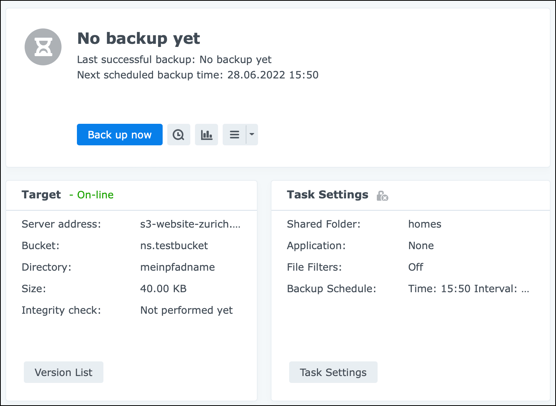
You can find more information on configuring Synology Hyper Backup here.
Synology Cloud Sync
To connect Synology Cloud Sync to your Object Storage / Archive Storage account, first start the Cloud Sync application on the Synology NAS:

Create a new Cloud Sync task by clicking "+":
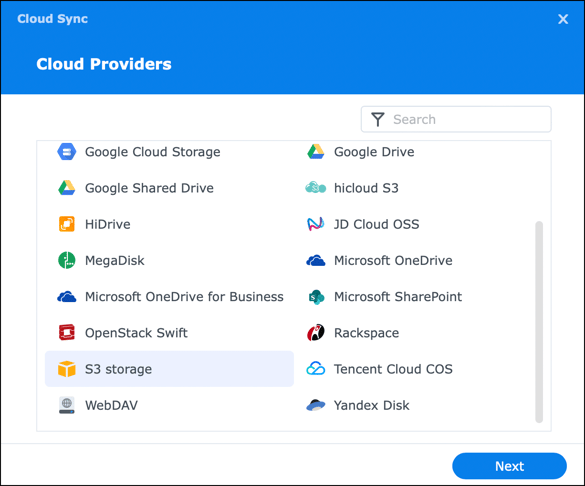
Then select "S3 storage" as the cloud provider:
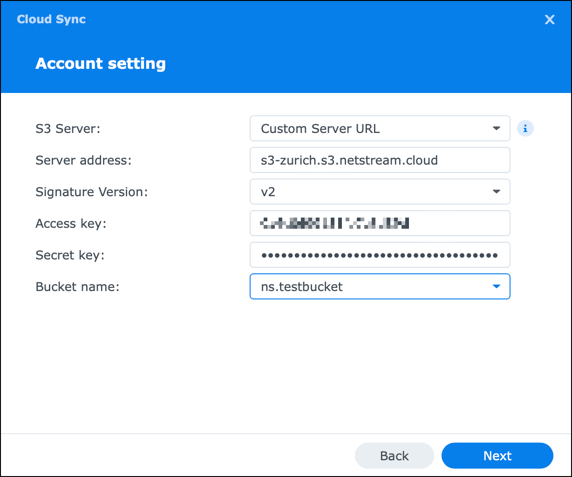
Next, configure the backup destination as follows, using the details you created beforehand in the Object Storage / Archive Storage portal:
| S3 server | Custom Server URL |
| Server address | s3-zurich.s3.netstream.cloud |
| Signature version | v2 |
| Access key | <Access key ID> |
| Secret key | <Secret key> |
| Bucket name | <Bucket name> |
In the settings that follow, you can define which folders on your Synology NAS are synchronised, whether synchronisation runs in one direction only or in both directions, whether you want encryption, and how often synchronisation takes place.
The synchronisation job is now displayed: