![Netstream_White_RGB[1].svg]](https://support.netstream.cloud/hubfs/Netstream_White_RGB%5B1%5D.svg)
From 14.03.2023, two-factor authentication is mandatory for all Rubrik users.
Before you begin
Install an app that provides time-based one-time passwords (TOTP). Rubrik Two-step Verification supports apps from Microsoft, Google and Okta.
Start setup via the UI
- Log in to the Rubrik console .
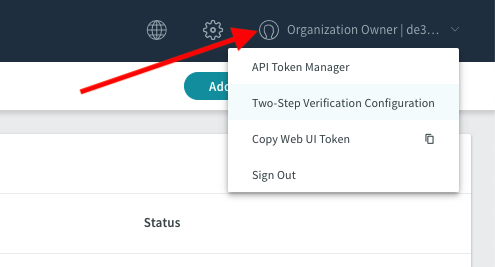
- Select the "Two-Step Verification Configuration" option from the drop-down menu.
Start setup at login
- Go to your login to access the Rubrik console. When you log in, the following security message appears:
.png?width=515&height=386&name=image%20(1).png)
- Click "Continue" to start the setup straight away (recommended).
- Now set up 2FA.
Set up 2FA
- The two-factor authentication wizard appears.
Click Next. - The 2FA Quick Response (QR) code appears.
(If you cannot scan the QR code) click "Show link".
A text link for manual entry in the 2FA app is displayed. - Start the 2FA app and set up a new authentication service.
The device starts the camera software. - Point the device's camera at the QR code.
- The 2FA app displays a TOTP.
- Enter the TOTP in "One Time Password".
- Click "Submit".
From now on, you will also need the TOTP when you log in.